Lightbox Overview
Traditionally, a "lightbox" is a backlit surface photographers use for viewing transparencies. Your Photo Stock Source virtual Lightbox is a tool for assembling your current order or planning for a future order.. It allows you to collect all of the photos you're interested in - from various galleries, lists, or searches - into a central viewing gallery for later review and comparison. This is made up of thumbnail sized photos and looks just like the regular galleries. You can see what one looks like in this Lightbox Demo
You add photos to your Lightbox by clicking on any of the buttons that are found under photos in the Galleries, Search Tool, and Large Photo View.
You access your Lightbox by pressing the Your Lightbox link found in header all pages.
You can buy single photos straight from the Lightbox, Galleries or Search Tool gallery by clicking on the or buttons found in each Photo Preview or in the or large photo views.
If you want the contents of your Lightbox to be saved so they're available next time you visit, you'll have to 'Log In' to your Account if you have one or create a new one if you don't.
Each time you return to Photo Stock Source, the contents of your last Lightbox are made available to you as soon as you 'Sign in'. This allows you to work on an order for extended periods.
Return to Top
Index
Using the Lightbox
The first line of the Lightbox is the Lightbox Header which contains several important tools and displays.
If you're not Signed In to your Account, the next line will display the warning:
This just lets you know that if you want your Lightbox to be available next time you visit our site, you must 'Sign In' to your Account or 'Sign Up' if you don't already have one.
The next line and bottom lines contain the Page Selector which you use to navigate the various pages of your Lightbox.
The central Lightbox area contains the Thumbnail Photos in the same Gallery format that is used on Gallery and Search pages.
Under each photo you'll find the Photo Buttons which you use to assemble your order.
Return to Top
Page Selector
Return to Top
Thumbnail Photos
Return to Top
Order Buttons
Gallery, Lightbox, Order History and Search Tool thumbnail photos and Large Photo Views have various buttons underneath them for working with the photos. On any of these galleries you can mouse-over (or touch) an image and a photo preview will 'pop-up' displaying these buttons:
The Order Print button appears below the image in the mouse-over preview popup window. If you are interested in ordering a Fine Art Print (with or without a frame), clicking on this button will take you to the Ordering Options page where you can choose the size, see the price, crop the photo, choose the paper finish and set the number of copies. Then you can add this product to your shopping cart.
The Order Photo button appears below the image in the mouse-over preview popup window. If you are interested in ordering a Digital Photograph (in .jpg format), clicking on this button will take you to the Ordering Options page where you can choose the size (smaller sizes are free), see the price, crop the photo, and set the number of copies. Then you can add this product to your shopping cart.
The Enlarged View button displays a full screen, watermarked, version of the photo. In the upper left is a group of buttons for working with the photo.
You can use the mouse wheel to zoom in/out (or pinch with your fingers), or use the zoom in and zoom out button . There is also a full screen view button which acts as a toggle to take you in and out of full screen mode.
You can use the button to go back to the most recent gallery, the to order a Fine Art Print (with or without a frame), the button to order a Digital Photograph (in .jpg format), the
button for a large view of the photo where you can read more information about the photo, and if you right click on the image, you can download a Photo Comp with 'Save image as'.
The  button allows you to share the photo on Facebook. The
  button allows you to share the photo on Pinterest. The
  button allows you to share the photo on Twitter.
Clicking on the 'Lightbox' button will add the photo to your lightbox (in the first position) and change to the 'Your Lightbox' page.
If you are on the Lightbox page, you will see the 'Delete' button which allows you to remove photos from your Lightbox.
 If you are on the Lightbox page, you will see the 'Move to Position' button which allows you to change the order sequence of the photos in your lightbox. To move the photo click on the button and choose which position you want to move the photo to from the drop down list.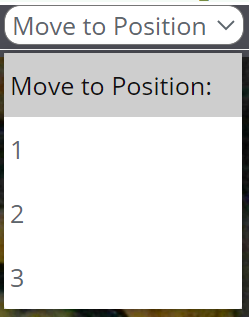
Return to Top
Return to Top